Elsewhere
S
S
Sam Shibuya, Tokyo
Now 6,740 mi
Find My
Family and friends see your iPhone at the new spot, not at home.
Elsewhere moves your iPhone's location anywhere on Earth, and every app on the phone believes it. No jailbreak. No computer, after the first four minutes.
Elsewhere changes the location iOS itself reports, so apps don't have to support it. Find My, Snapchat, Life360 and everything else on the phone see the same place.
Also Google Maps · Instagram · WhatsApp · Messages · Tinder · Hinge · Bumble · Weather — and every other app that asks where you are.
Elsewhere isn't affiliated with or endorsed by Apple, Snap or Life360. App names are trademarks of their owners.
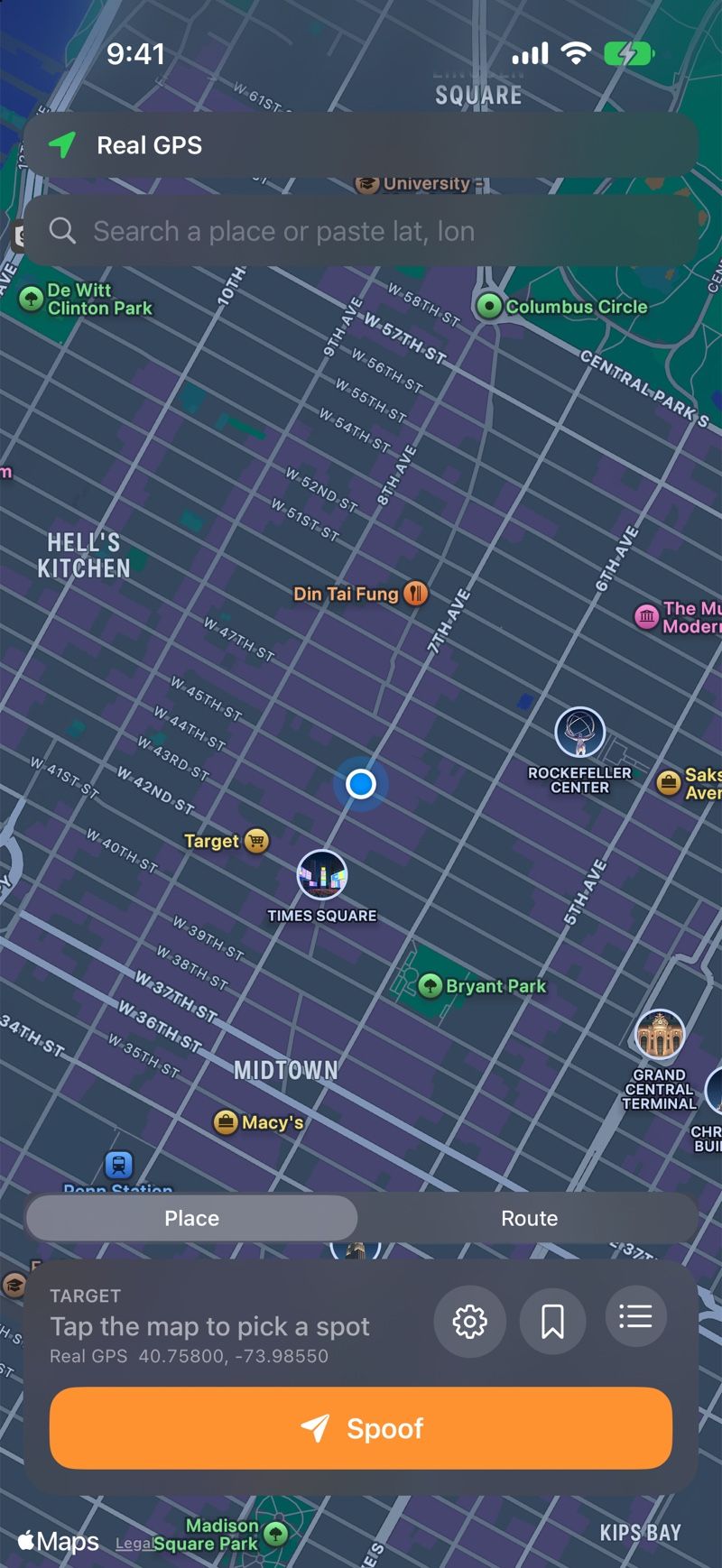
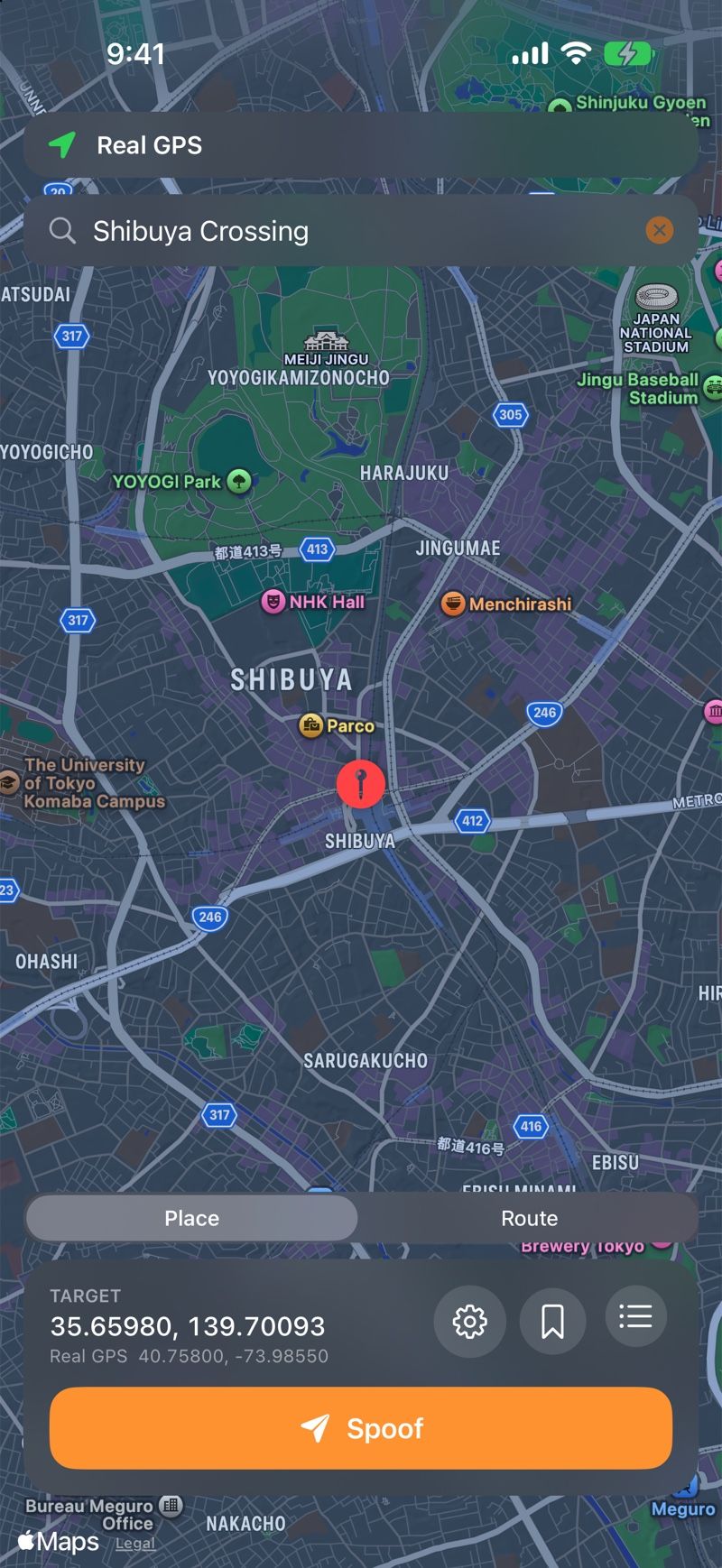
Type a place, tap the map, or paste coordinates. The map shows where your phone really is, so you can see the difference.
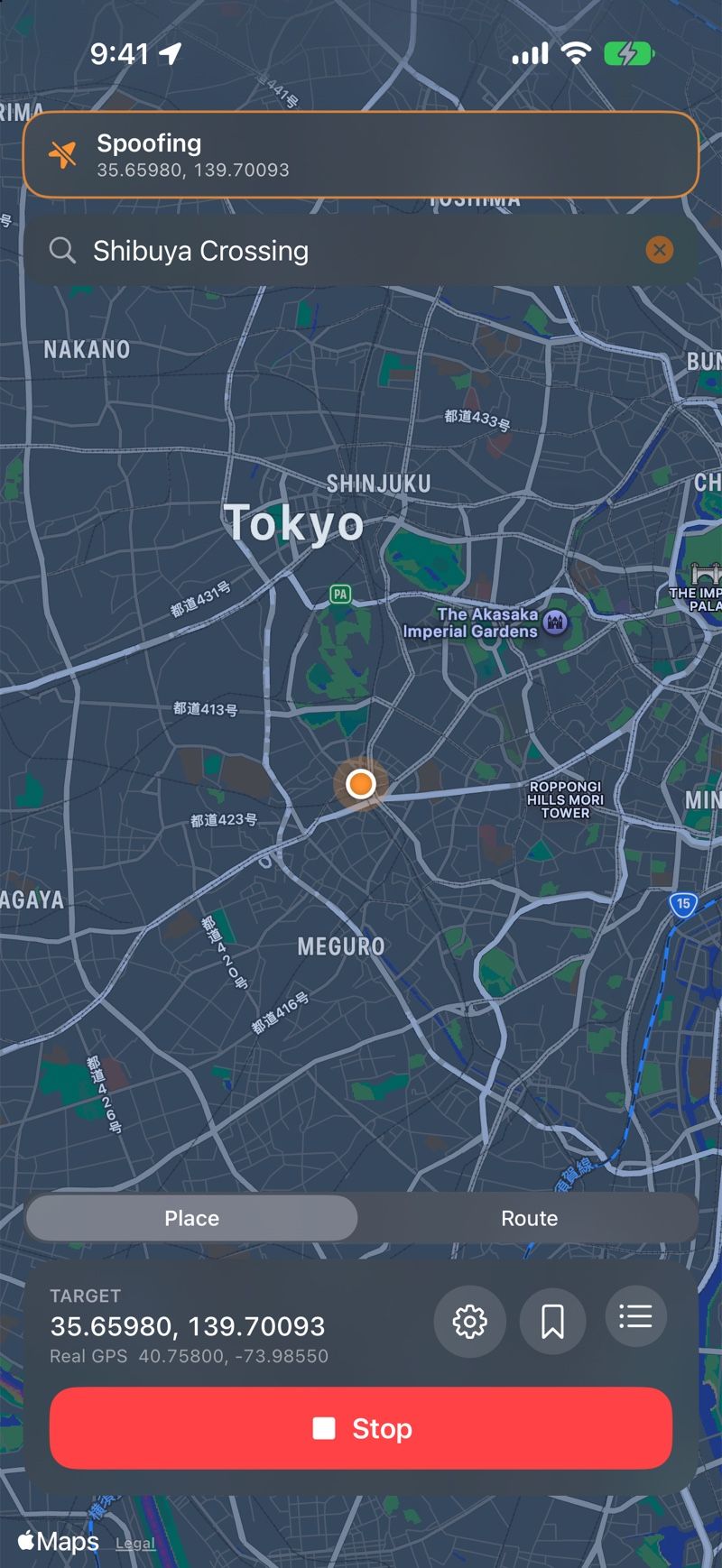
The pin drops wherever you chose — across town or across the world. One tap sends it to the phone.
It's set at the system level, through the pathway Apple ships for developers — not a fake inside one app. Stop puts your real GPS back.
Pick a start and an end. Elsewhere moves your phone along real roads at the speed a car would actually do them — lights, corners and all.
Routes come from Apple Maps directions — actual streets, turns and one-way rules. Not a straight line over rooftops.
Choose how many signals are red. The car pulls up, waits, and leaves when it changes — and raising the count turns exactly one more light red.
Each road's posted limit from OpenStreetMap, braking for corners like a driver would. Stop signs always stop.
The whole drive is planned before you leave, so the ETA doesn't lurch around. And arriving isn't stopping — the spoof stays at the destination.
The spots you use often, a tap away. Tap one and the map is already there.
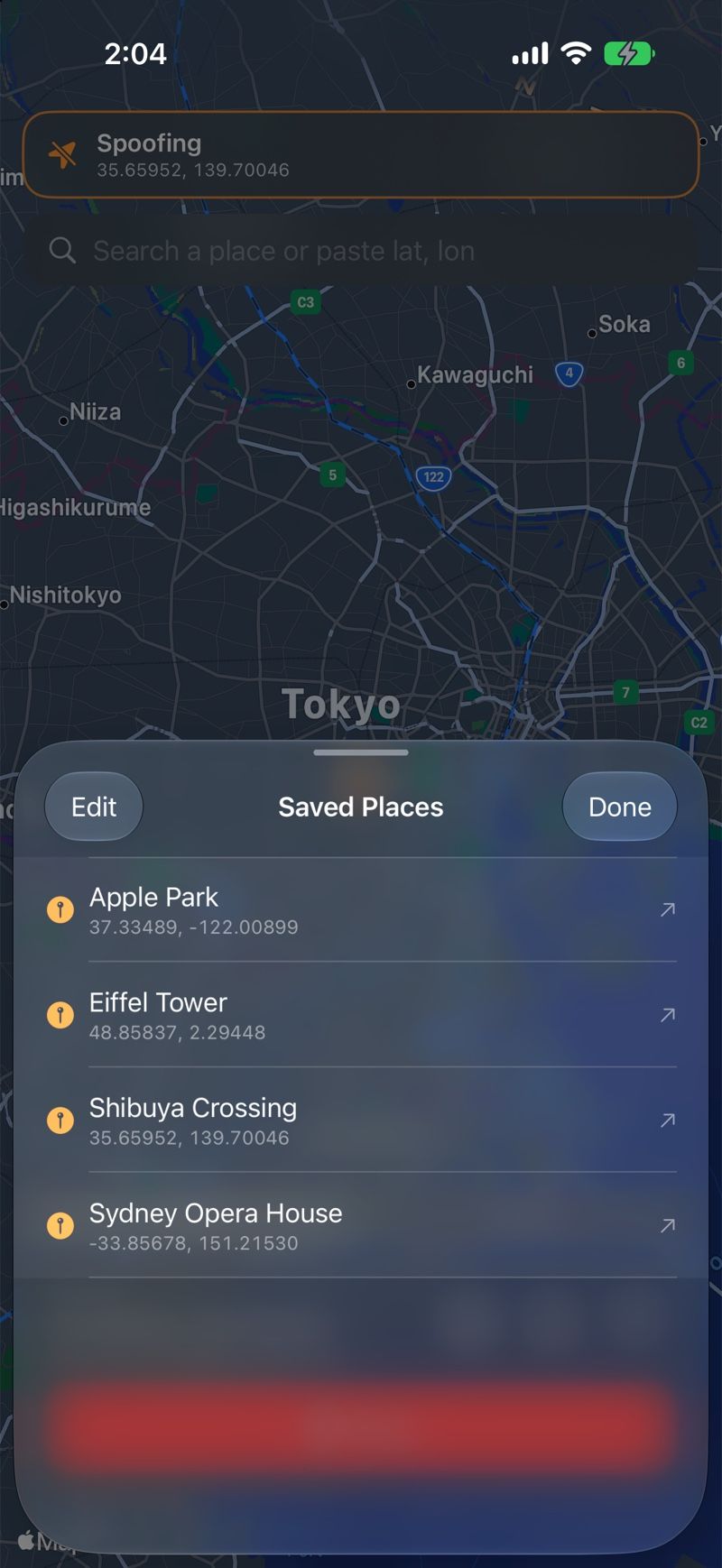
Latitude, longitude — straight from a map link. Or just type a place.
Your iPhone stays completely stock. Nothing about iOS is modified.
One tap and real GPS is back. Restarting the phone does the same.
Lock the screen, open other apps. It holds for as long as Elsewhere is running.
The places you pick are never sent to us.
Apple only lets an app like this in through a computer. So you use one once — to install the phone app — and then it stays home.
On your Mac or PC. Elsewhere signs the phone app with your own free Apple ID and installs it.
That's the computer's whole job. From here on, it's just your iPhone.
Every app on the phone sees the new location. Stop puts the real one back.
Each of these, found out after paying, would be a refund. So here they are first.
Something else? Write to support@elsewheregps.com — a person answers, usually the same day.
Once, to install the phone app — Apple requires a computer to sideload an app this way. After that the computer stays home.
Any iPhone or iPad on iOS 17.4 or later, including iOS 27. You'll switch on Developer Mode in Settings, which is Apple's own toggle.
Starting a spoof needs Wi-Fi. iOS only runs the developer service Elsewhere talks to while the phone is on a local network, so cellular alone isn't enough to begin — that's Apple's limit, not ours.
Elsewhere doesn't touch your Apple ID. But some apps and games detect a simulated location and may restrict accounts that use one. That risk is yours to weigh.
The spoof ends about thirty seconds later and real GPS returns. Leave Elsewhere running in the background and it holds — through the lock screen and other apps.
Yes. There's no jailbreak and no modification to iOS. The only thing added is the Elsewhere app, which you can delete like any other.